

docs.json format that was established by Mintlify. We also support options beyond this spec to make your documentation easier to navigate and to create custom content groups.
Validate docs.json in your editor
Point$schema at the Docs7 schema. Your editor then completes and checks the Mintlify fields and the Docs7-only fields on this page.
docs.json
Group products
Product groups add a product switcher to the sidebar. A reader picks a product, and the sidebar shows only the pages for that product.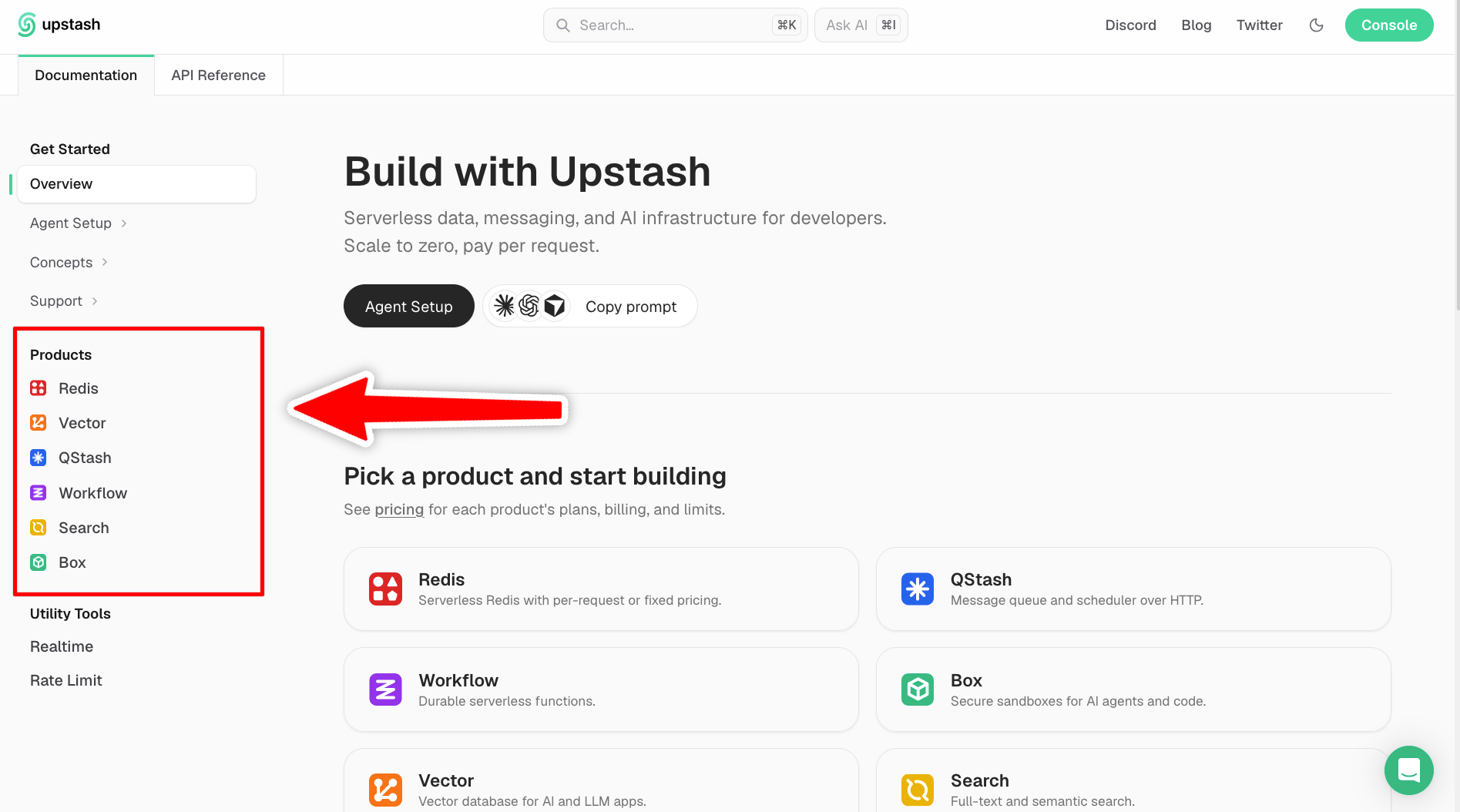
Before a reader picks a product, the sidebar lists the tab's own pages and every product group.
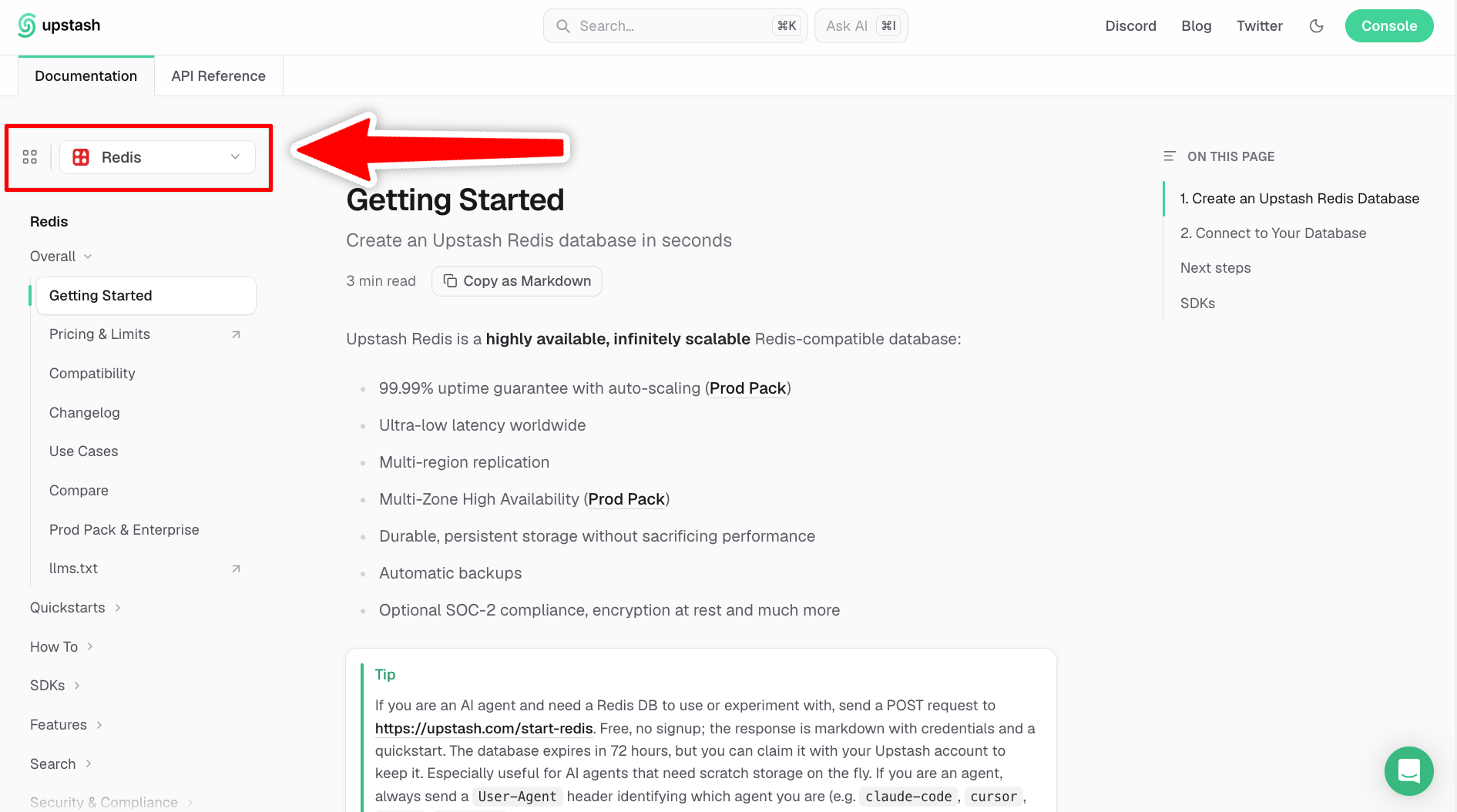
After picking Redis, the sidebar shows only Redis pages. The dropdown at the top switches products.
productGroups list to one tab. That tab shows the product switcher. The tab’s own pages fill the sidebar until the reader picks a product. Each product then lists its own pages. If your docs have several versions or languages, add the list to one tab in each of them.
docs.json
- The Documentation tab shows the product switcher. Until the reader picks a product, the sidebar shows the index page.
- Redis and Rate Limit are the two products. Each one lists the pages that appear when it is selected.
- The API Reference tab is a normal tab and does not use product groups.
- Each product needs either a list of pages or a list of groups, not both.
- That list must have at least one entry.
- Inside one tab, product names must be unique, and group names must be unique.
Enable sidebar filtering
SetfilterSidebar to true to add a filter above the sidebar. Readers can press / to focus it.
docs.json
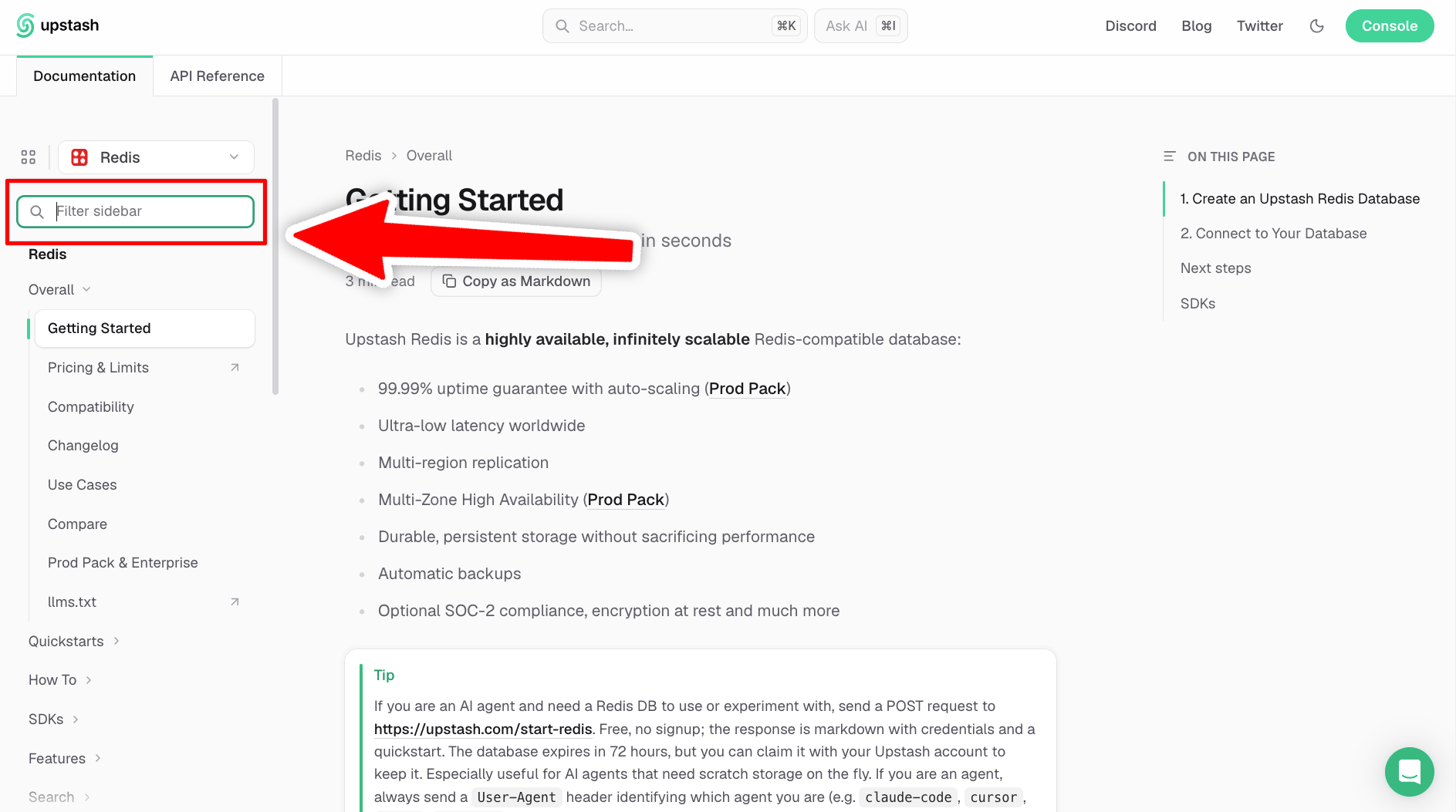
The filter box sits above the sidebar. Typing in it narrows the sidebar to matching pages.
false.
Show Docs7 attribution
SetpoweredByDocs7 to true to add a Built with Docs7 link to the footer. The link opens the Docs7 page.
docs.json
false. Docs7 always shows this link for sites on the Free plan.
Ask for cookie consent
SetconsentBanner to true to ask visitors for cookie consent before your analytics and marketing integrations load.
docs.json
- Analytics: Adobe Analytics, Google Analytics, Google Tag Manager, Heap, Microsoft Clarity, Plausible, and Segment.
- Marketing: Clearbit and Koala.
false. Without the banner, your integrations load for every visitor.
Add an agent setup menu
SetagentSetup to add a second button next to Copy as Markdown on every page. Use it to give readers what their coding agent needs: a prompt, your MCP server URL, or a command that installs your skills.
docs.json
title(required): the label of the item.copyorhref(one of the two is required):copyputs the text on the clipboard.hrefopens the link in a new tab. A link must be anhttp://orhttps://URL, or a path on your site.description: text under the title in the menu. When the button copies its text, the description also shows under the button.icon: an icon name, as in othericonfields. The default is a copy icon forcopyand an arrow forhref.
agentSetup, Docs7 does not show the menu.