

Library claiming is available for Git repositories, websites, and llms.txt sources.
Why Claim Your Library?
Claiming ownership provides several benefits:- Web-based configuration: Edit settings through a user-friendly interface instead of committing changes
- Teamspace management: All project members can manage the library configuration
- Version management: Add and manage multiple versions of your library documentation
- Usage analytics: View metrics on how developers use your library’s documentation
- Higher refresh limits: Get higher rate limits for refresh operations to better manage your content
- Apply for verification: Only owners can apply for the verified badge. Learn more about verification
Claiming Process
1
Navigate to the Admin Page
You can access the admin page in two ways:From the Dashboard:
Find your library in the dashboard and click the “Manage” button to open the admin configuration page.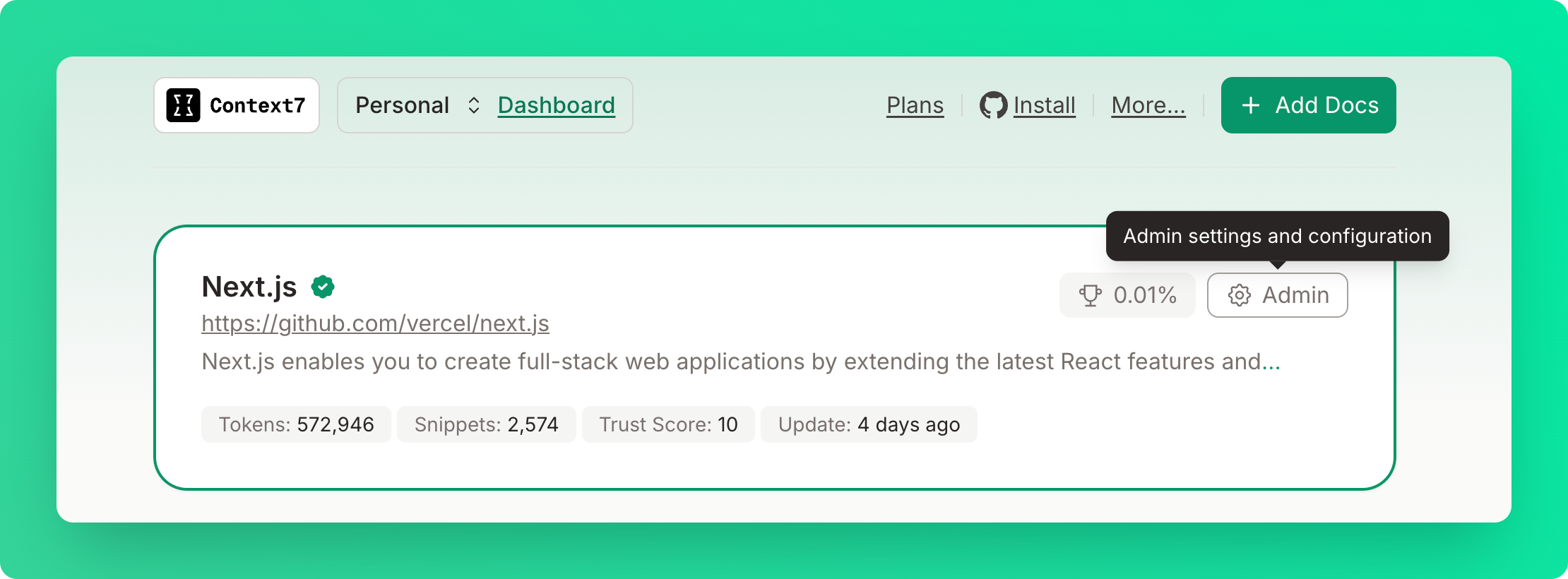
https://context7.com/vercel/next.js/admin2
Open the Claim Modal
If you haven’t claimed the library yet, you’ll see a “Claim Library” button in the header. Click it to open the claiming modal.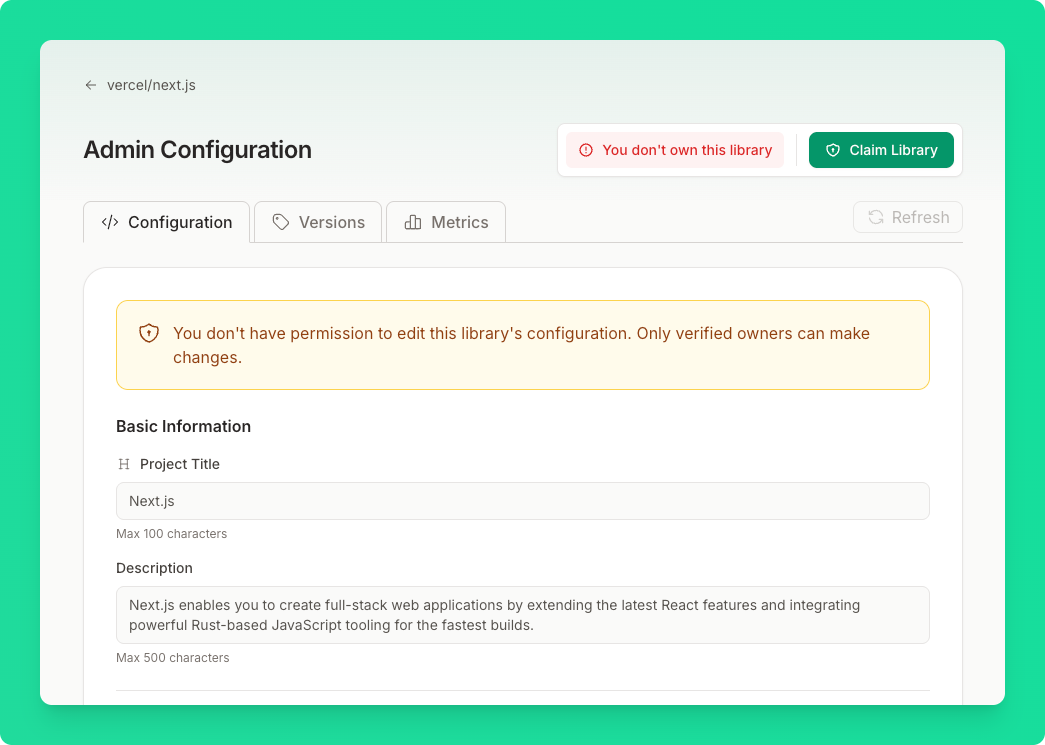
3
Get Your Public Key
In the claiming modal, you’ll see a generated 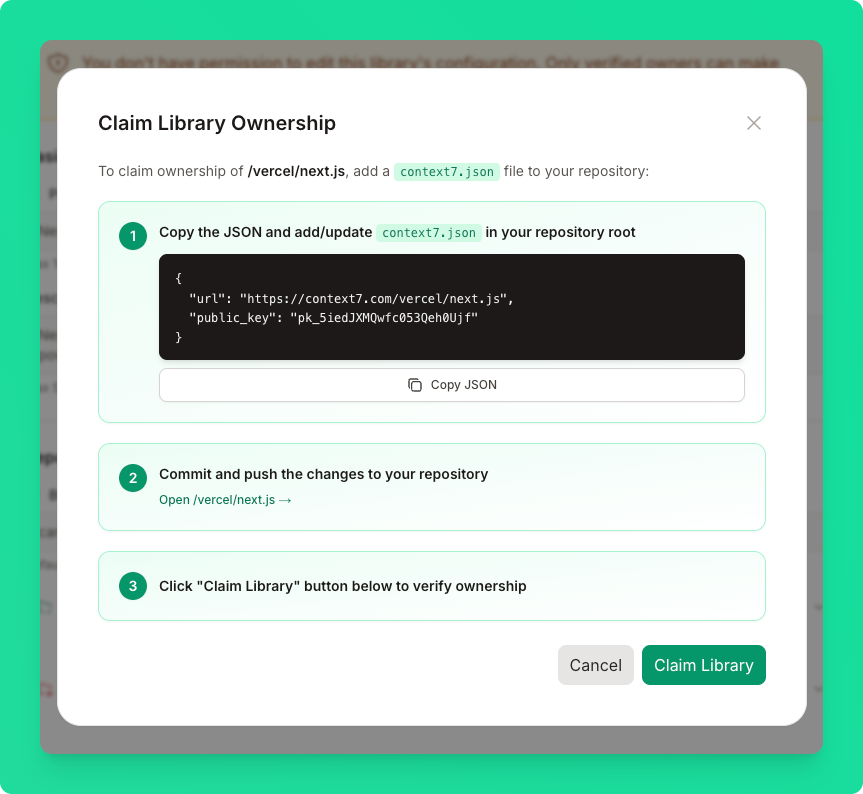
context7.json configuration with your unique public key:4
Host the context7.json File
- Git Repository
- Website / llms.txt
Create a Commit and push the file to your repository’s default branch.
context7.json file in the root of your repository with the copied content:5
Verify Ownership
Click “Claim Library”. Context7 will fetch your
context7.json, verify the URL and public key, and grant you access to the admin panel.Admin Panel Overview
After claiming your library, the admin page shows a full configuration editor with five main tabs:- Configuration: Edit all library settings
- Chat: Embed an AI chat assistant on your documentation site
- Benchmark: Evaluation of the quality of your library’s documentation
- Metrics: View usage statistics
- Versions: Manage different versions and tags of your library
Configuration Fields
Basic Information
These fields are available for all library types.
Context7 checks a new title or description before it saves it. If the text gives instructions to AI agents, or is a slogan or promotional offer instead of a description of the library, the save fails with a reason and the current text stays.
Source Settings
- Git Repository
- Website
Exclusion Pattern Examples
The exclusion fields support various pattern types:excludeFiles only accepts filenames, not paths. Use CHANGELOG.md instead of
docs/CHANGELOG.md.AI Instructions
Example rules:
- “Always use TypeScript for better type safety”
- “Import components from the main package, not internal paths”
- “Use environment variables for API keys, never hardcode them”
Advanced Settings
Available for Git repositories and websites.Managing Versions
The Versions tab lets you configure previous versions of your library that should be available in Context7.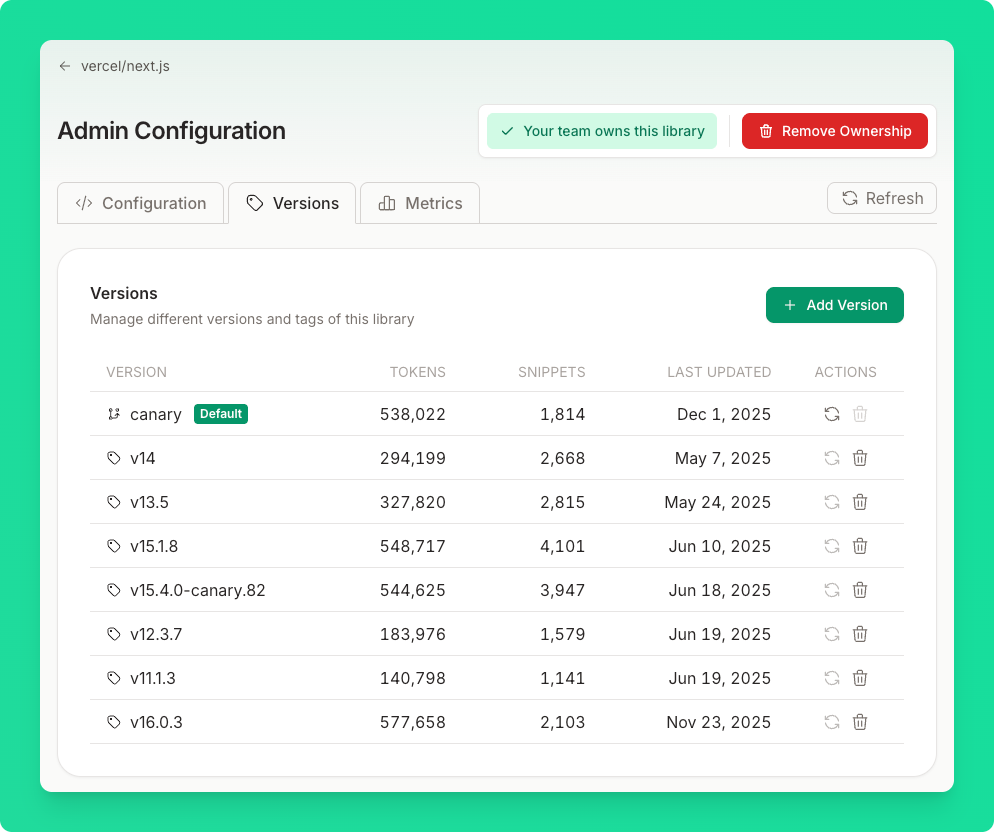
- Git tags: Reference a specific release tag (e.g.,
v1.2.0) - Git branches: Reference a branch for version-specific documentation (e.g.,
release-1.x)
Library Metrics
The Metrics tab provides insights into how developers are using your library through Context7.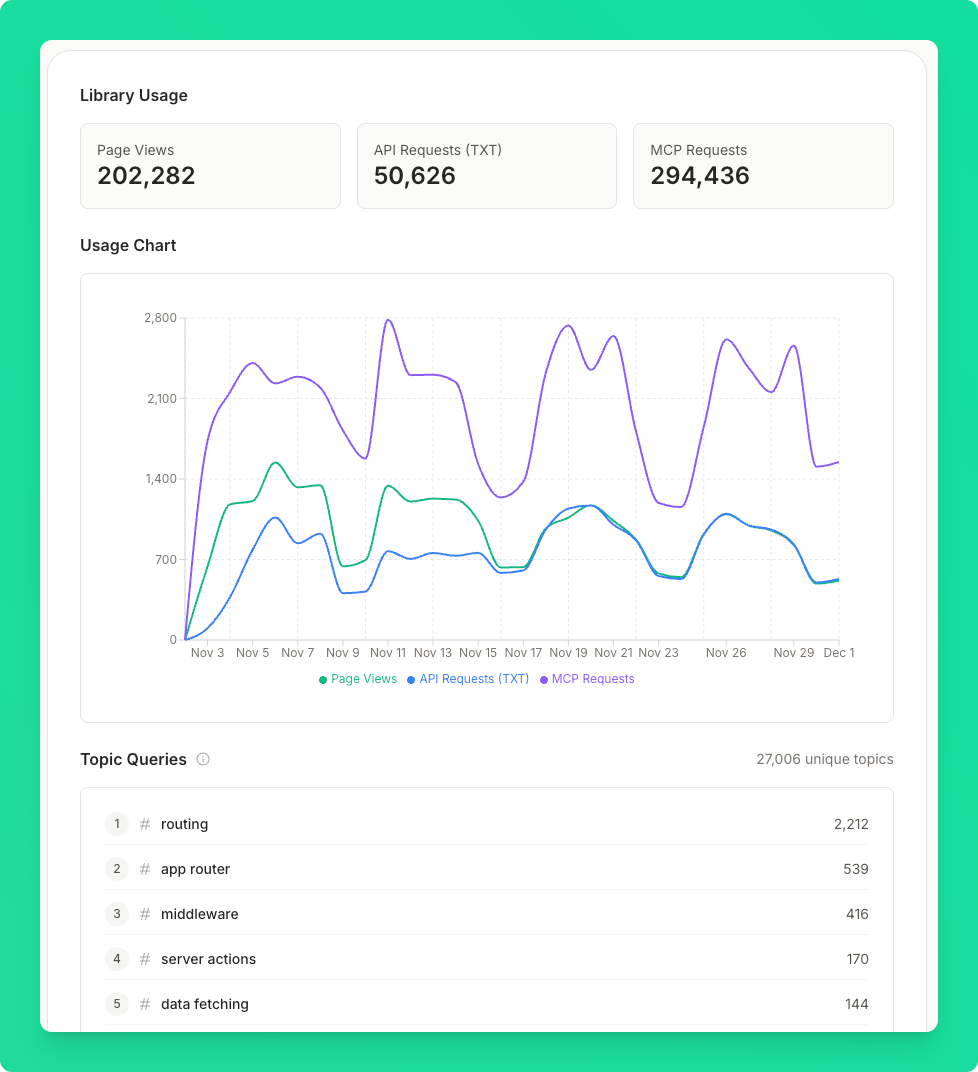
Usage Statistics
At the top of the metrics page, you’ll see key usage numbers:
The metrics page also includes a usage chart showing trends over time, topic queries showing what developers ask about, and country distribution of requests.
All team members can view library settings; owners and admins can edit them. See Teamspace Management for role details.
Removing Ownership
1
Go to the Admin Page
Navigate to your library’s admin page at
https://context7.com/{owner}/{repo}/admin.2
Open the Ownership Menu
Click the ownership menu in the header area.
3
Remove Ownership
Select “Remove Ownership” and confirm the action.
Troubleshooting
”context7.json not found”
Ensure the file is:- Named exactly
context7.json(lowercase) - Located in the repository root, not a subdirectory
- Committed and pushed to the default branch
”URL mismatch”
Theurl field in your context7.json must exactly match:
”Public key mismatch”
Thepublic_key in your file must match the key shown in the claiming modal. Copy the entire key including the pk_ prefix.
Changes not appearing
After saving configuration changes, you may need to:- Manually trigger a refresh from the library page
- Clear any cached documentation on your end