

1. Add your site
Open context7.com/ask, click Add your site and enter your site’s URL. If your pages live under a path, include it, likehttps://example.com/docs.
You need to be an owner or admin of the teamspace to add a site.
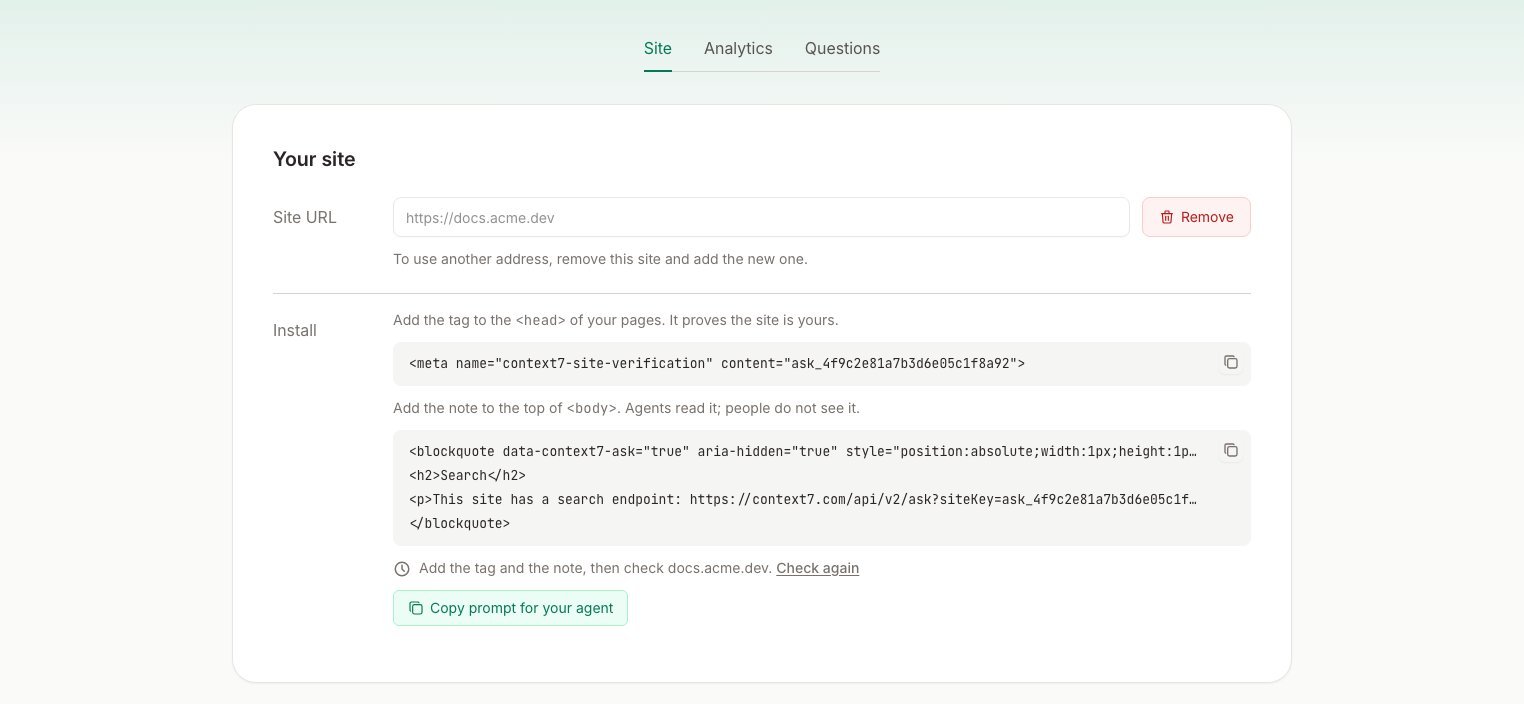
The Site tab shows both snippets and checks your site for them.
2. Add the tag to <head>
The tag proves the site is yours. It’s the same method search consoles use, so only someone who controls your page template can add it.
3. Add the note to <body>
Agents that read your page as text never see <head>, so the note goes at the top of <body>. It is hidden from people and from screen readers. Your design and page speed stay the same.
Keep the
data-context7-ask attribute. If your site already has a visually hidden class, like Tailwind’s sr-only, you can use it in place of the style attribute.4. Verify
Deploy your site, then click Check again in the dashboard. Context7 loads your site, looks for the tag and the note, and then reads your pages. Once that’s done, agents get answers, and the Site tab shows your site’s usage.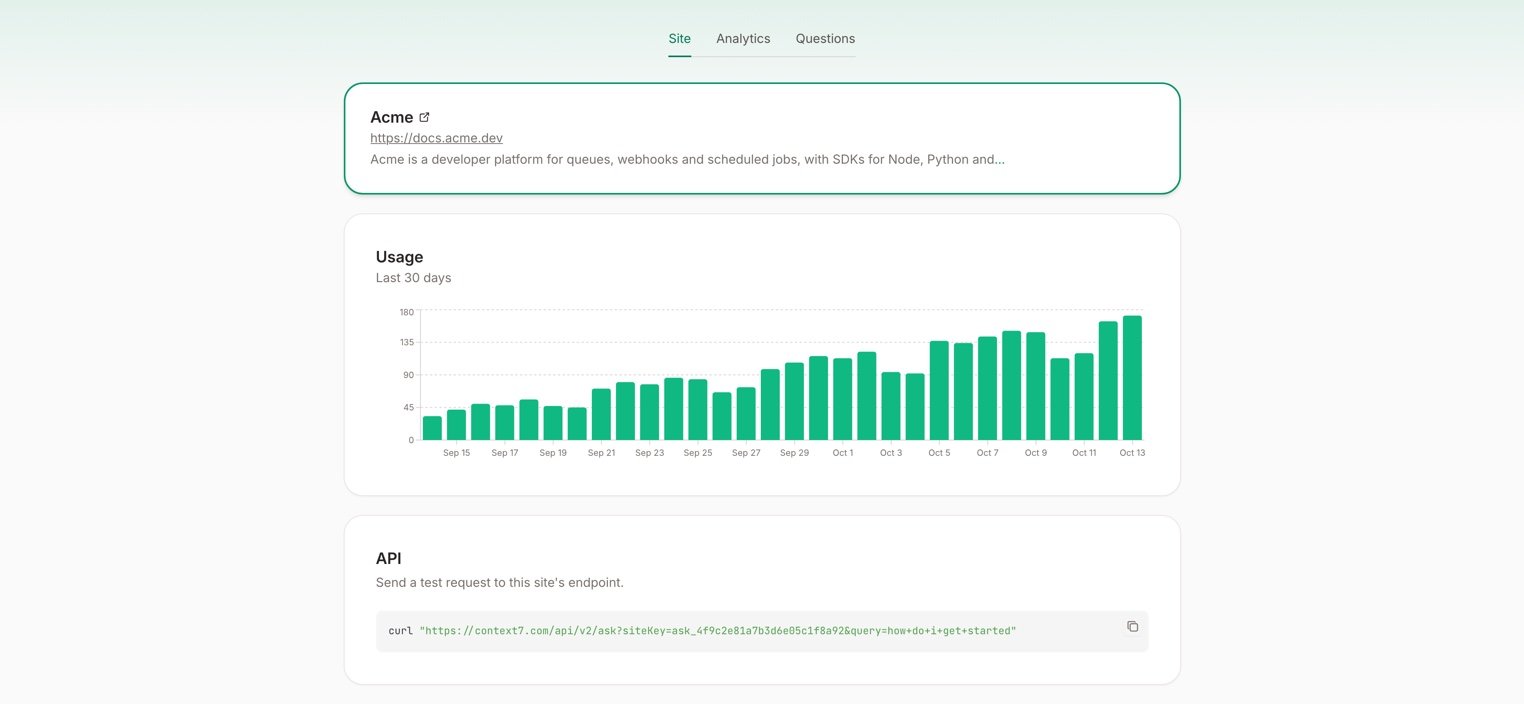
Once verified, the Site tab shows daily requests and a test request you can copy.
Test it
You can ask your site a question yourself, from the API card on the Site tab or with curl:Optional: llms.txt, markdown pages and headers
Some agents never read your HTML. They fetchllms.txt, a .md version of a page, or only the response headers. The prompt from Copy prompt for your agent adds the endpoint to all of these too:
- A Search section in
llms.txtandllms-full.txt - The same section at the end of each markdown page
- A
Linkheader withrel="search"on every page response