

Managing API Keys
Your keys are in the API Keys card of the Context7 dashboard.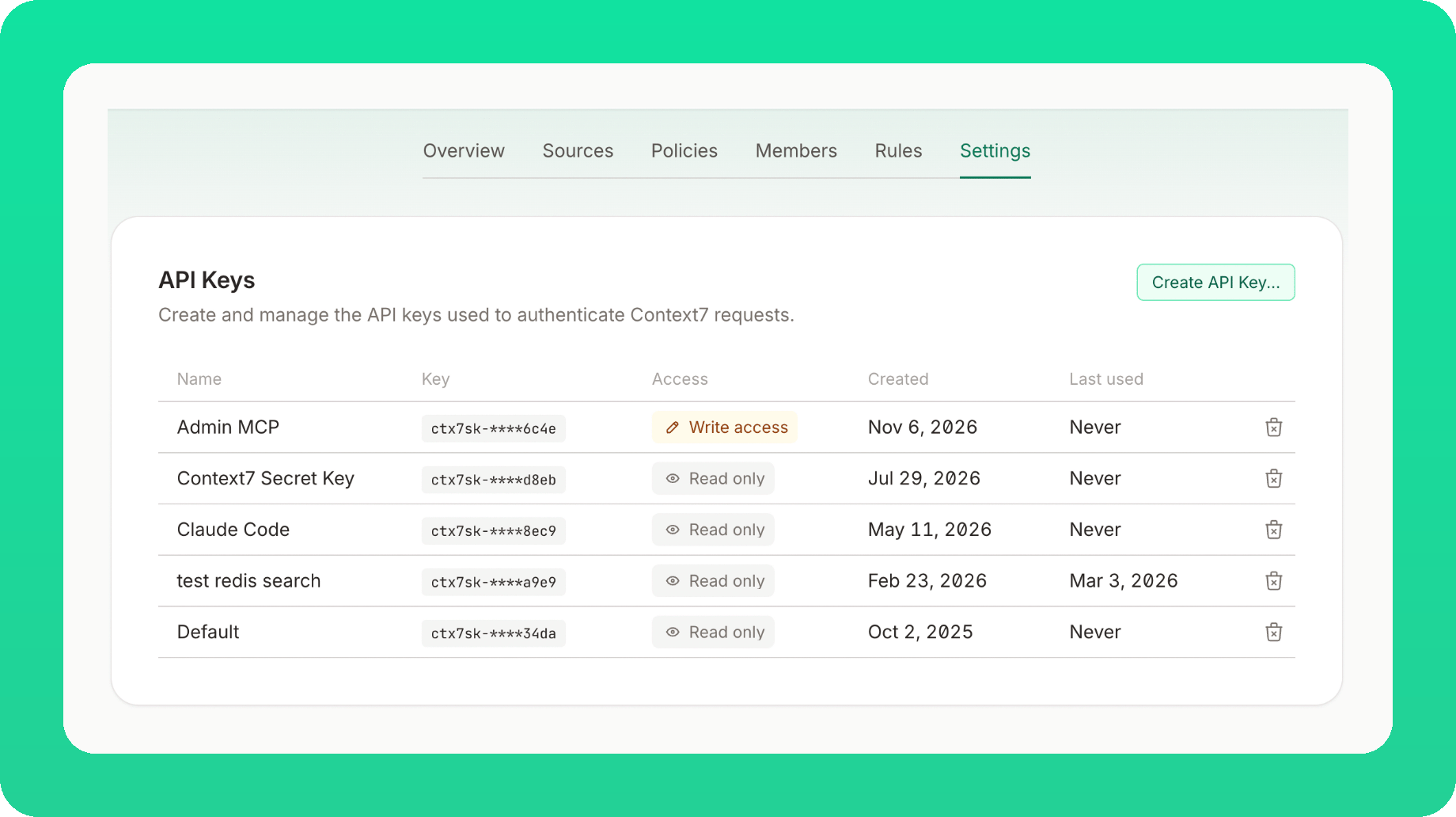
Creating API Keys
1
Open the create dialog
Click Create API Key in the API Keys card.
2
Name the key
Enter a name (optional but recommended). Descriptive names like “Cursor”, “Claude”, “VS Code”, or “Devin Desktop” help you identify the key later.
3
Choose write access
Every key can read the teamspace settings and usage through the management API. Tick Write access for a key that must change the teamspace or read personal data, like members and visitor questions (see below). Leave it off for keys that only fetch docs or read settings.
4
Copy the key immediately
Keys are shown only once for security. The format is
ctx7sk-**********************.5
Use the key
Use it in your requests or MCP configuration:
Write access
The Context7 Admin MCP and the management API (/api/v2/teamspaces/*) accept every API key, but a key is read-only there unless Write access was ticked when the key was created. The Access column of the API Keys card shows Read only or Write access for each key. A key reaches only its own teamspace.
A read-only key can read, with your role:
- the teamspace’s libraries, rules and policies, and usage
- Docs7 and Ask site settings, builds and traffic totals
- read personal data: members and invitations, library requests, Ask questions, Docs7 reader searches, assistant questions and conversations, page feedback, feature requests, and the GitHub account behind a build
- change the teamspace: its members, libraries, rules and policies, spending limit, and Docs7 and Ask sites
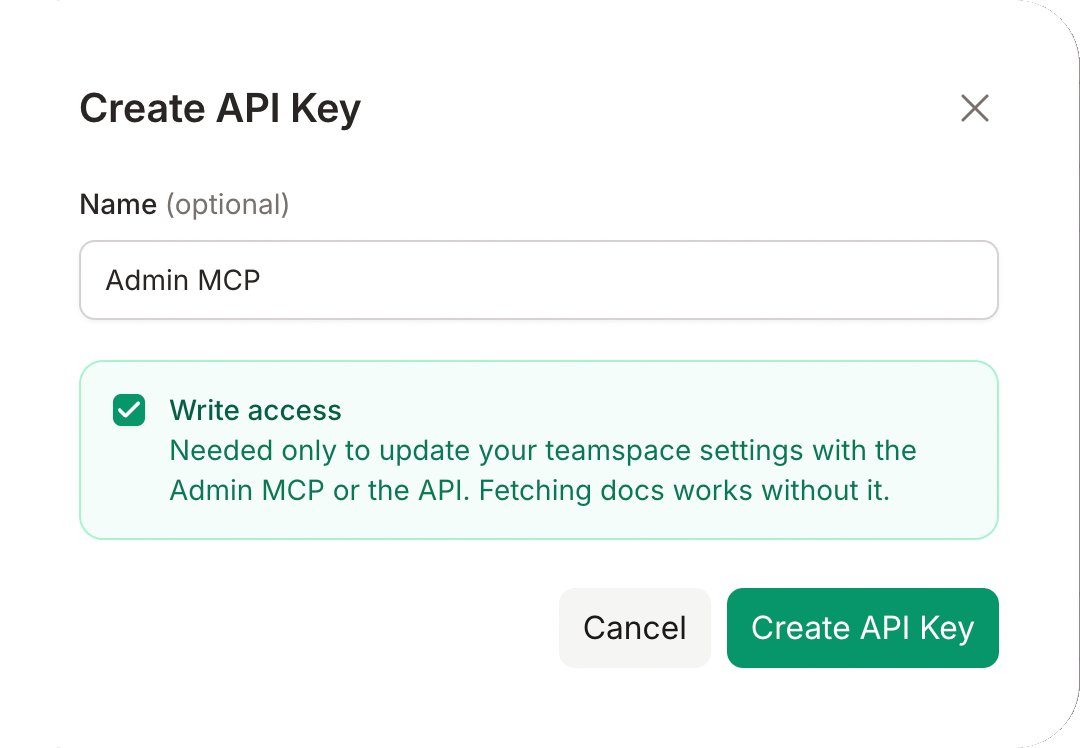
403 with the error write_access_required when it tries to make a change or read personal data. The teamspace invite link also needs write access, because the link lets anyone join. You cannot add write access to an existing key: create a new key with Write access ticked. With the Admin MCP you can also sign in with OAuth and use no key.
Revoking Keys
1
Delete the key
Click the delete button next to the key you no longer need.
2
Confirm deletion
Confirm in the modal. The key deactivates immediately — all requests using it will fail.
Revoking a key is permanent and cannot be undone. Update any applications using the key before
revoking.